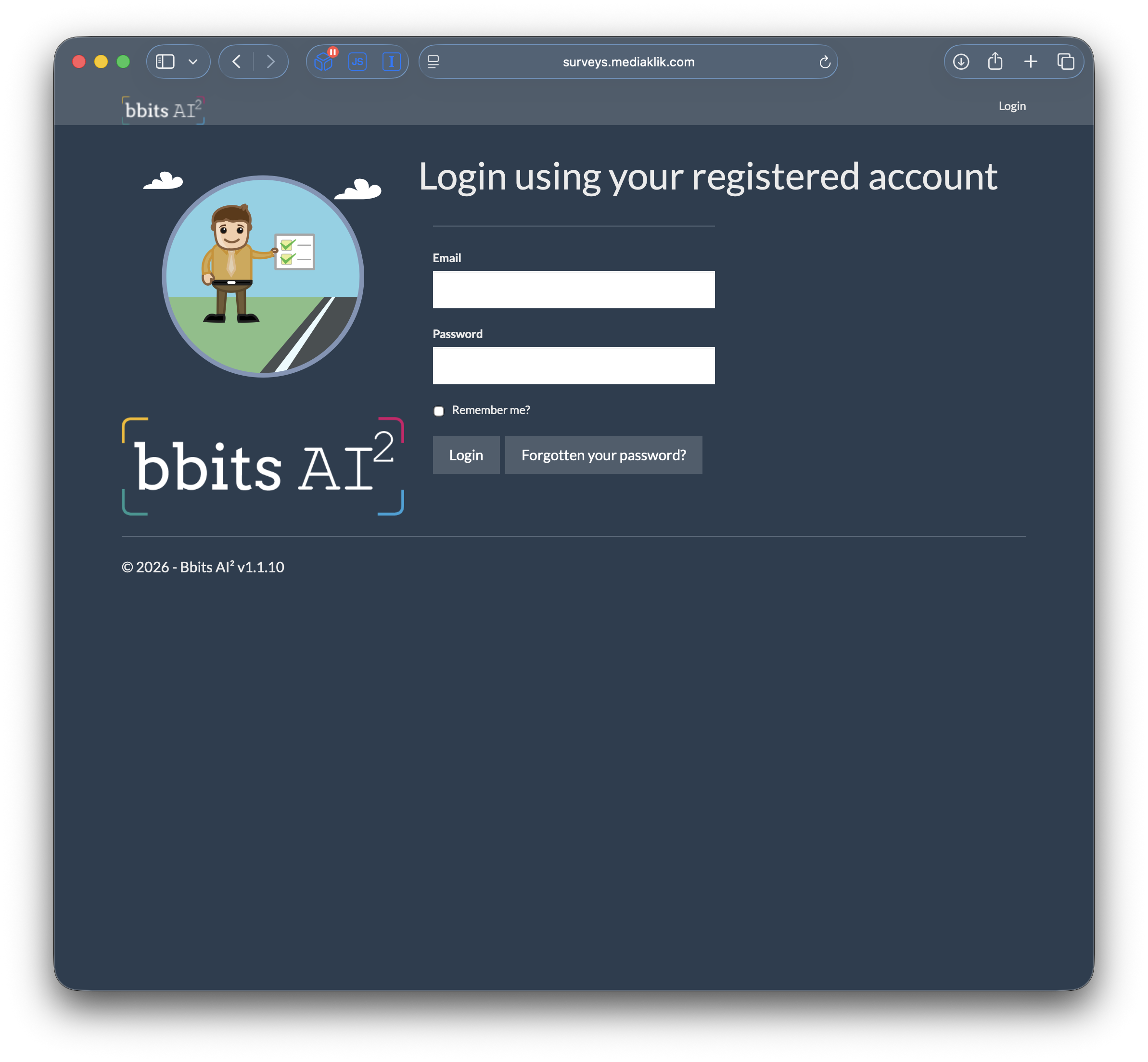
Sign in
Access your registered account
Enter your email address and password, then select Login. Use Forgotten your password? if you need reset instructions by email.
Administrator guide
Manage your organisation and export completed inspection data for import into Rialtas.
Open the admin panel ↗Sign in
Enter your email address and password, then select Login. Use Forgotten your password? if you need reset instructions by email.
Dashboard
Your organisation’s welcome message appears after sign-in. Use Surveys to export data and Organisation for general details, the welcome message and users.
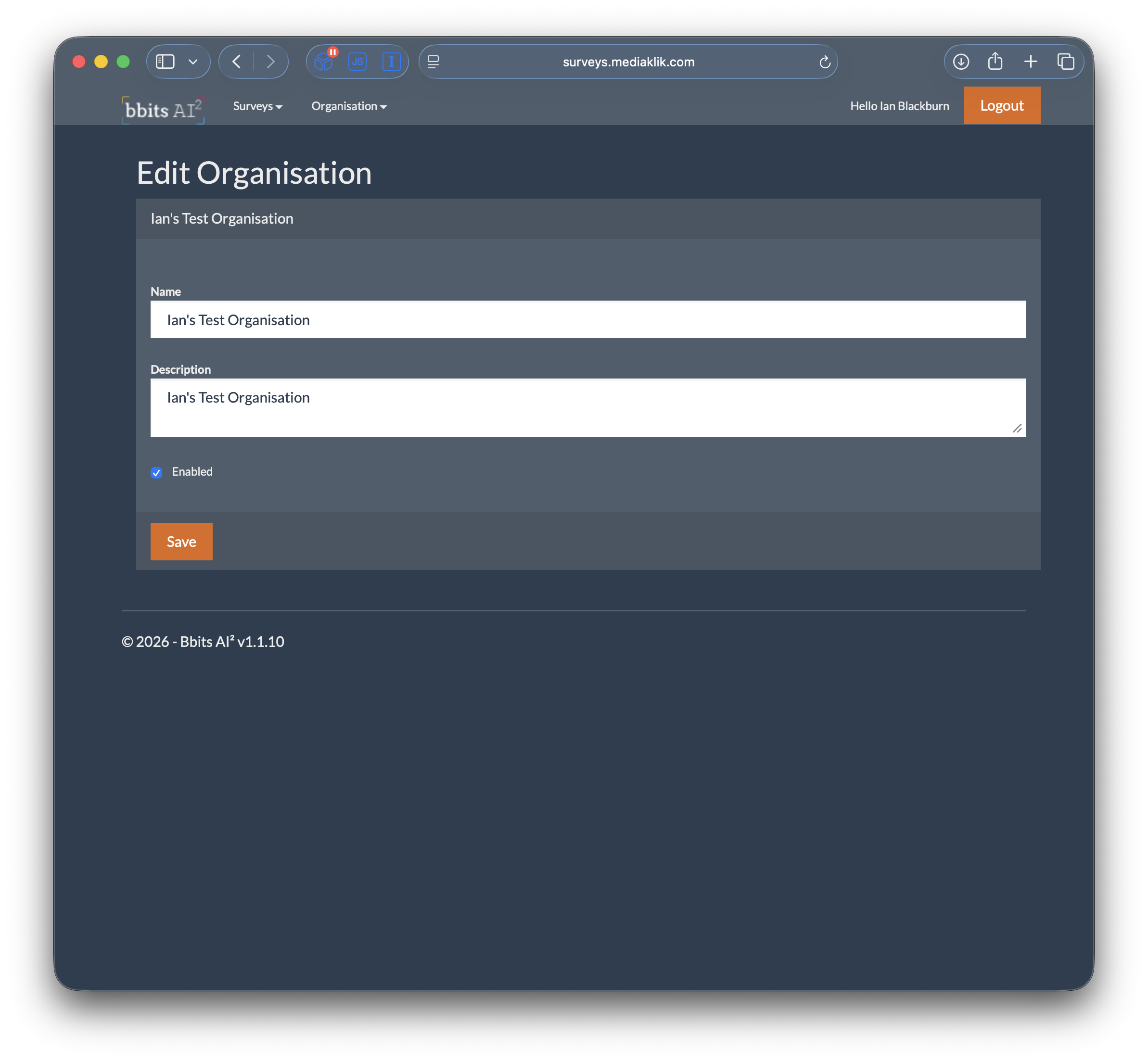
Open Organisation → General Details. Update the organisation information and select Save.
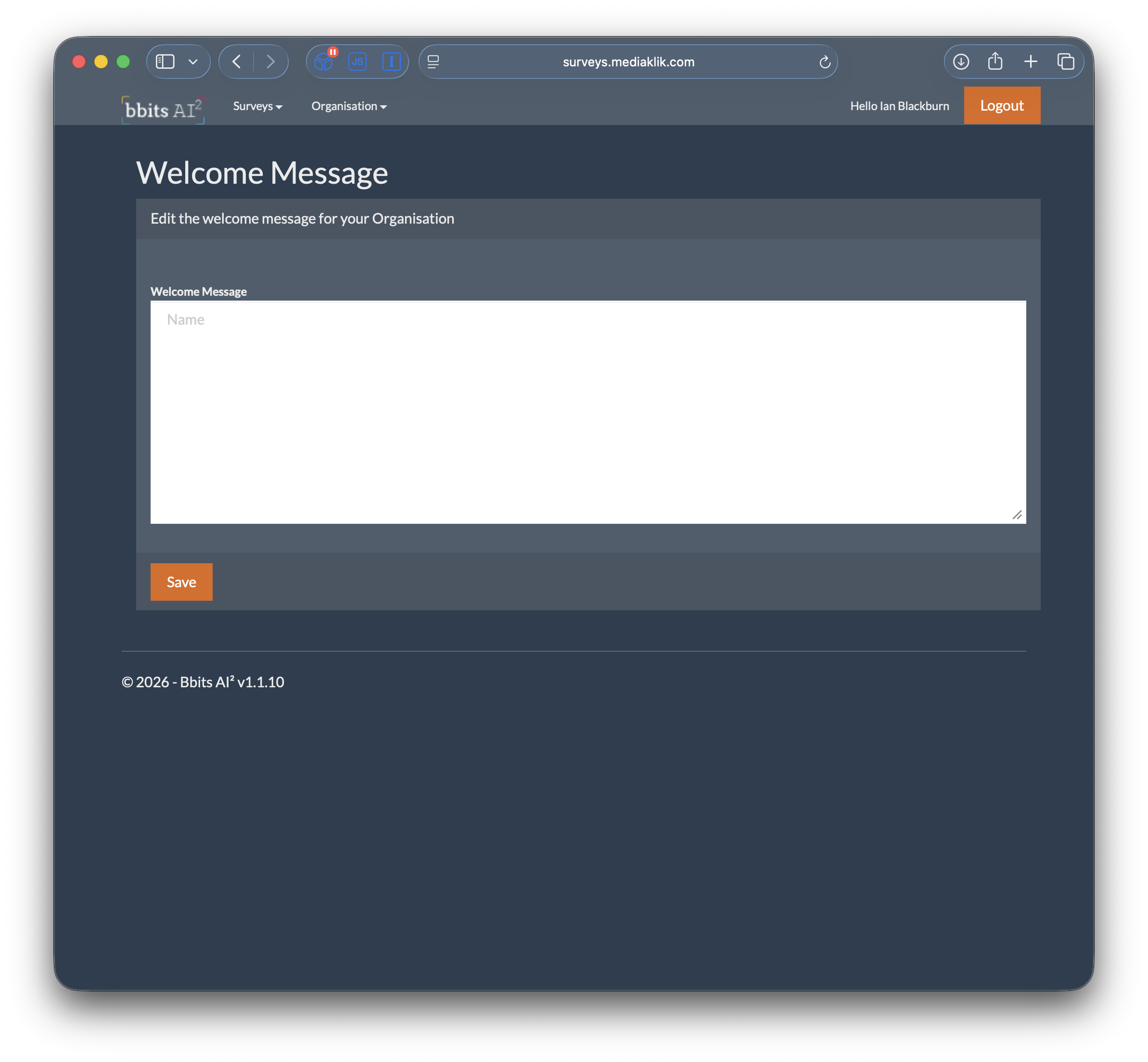
Open Organisation → Welcome Message. This message appears on the dashboard and in the app. Select Save.
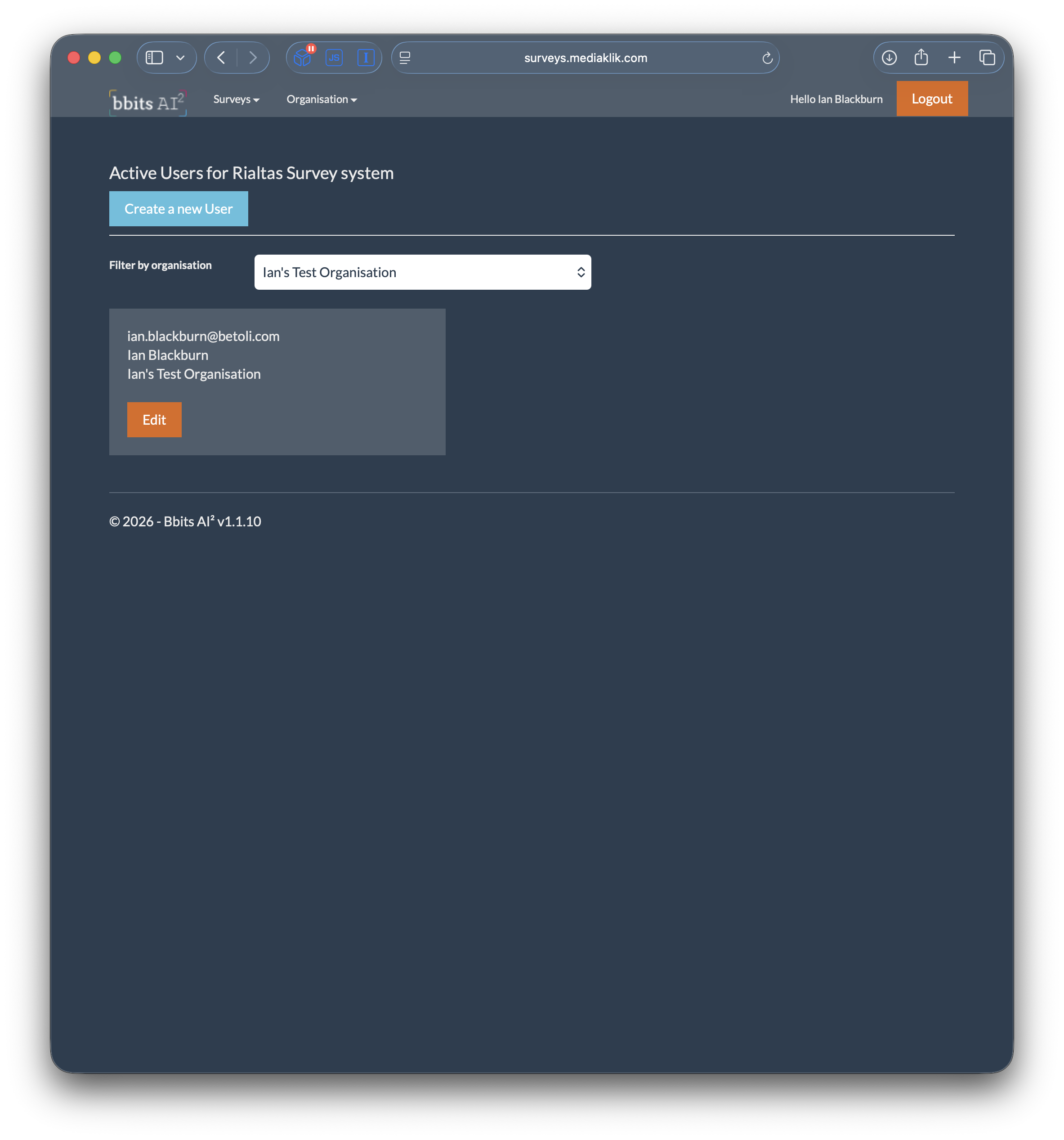
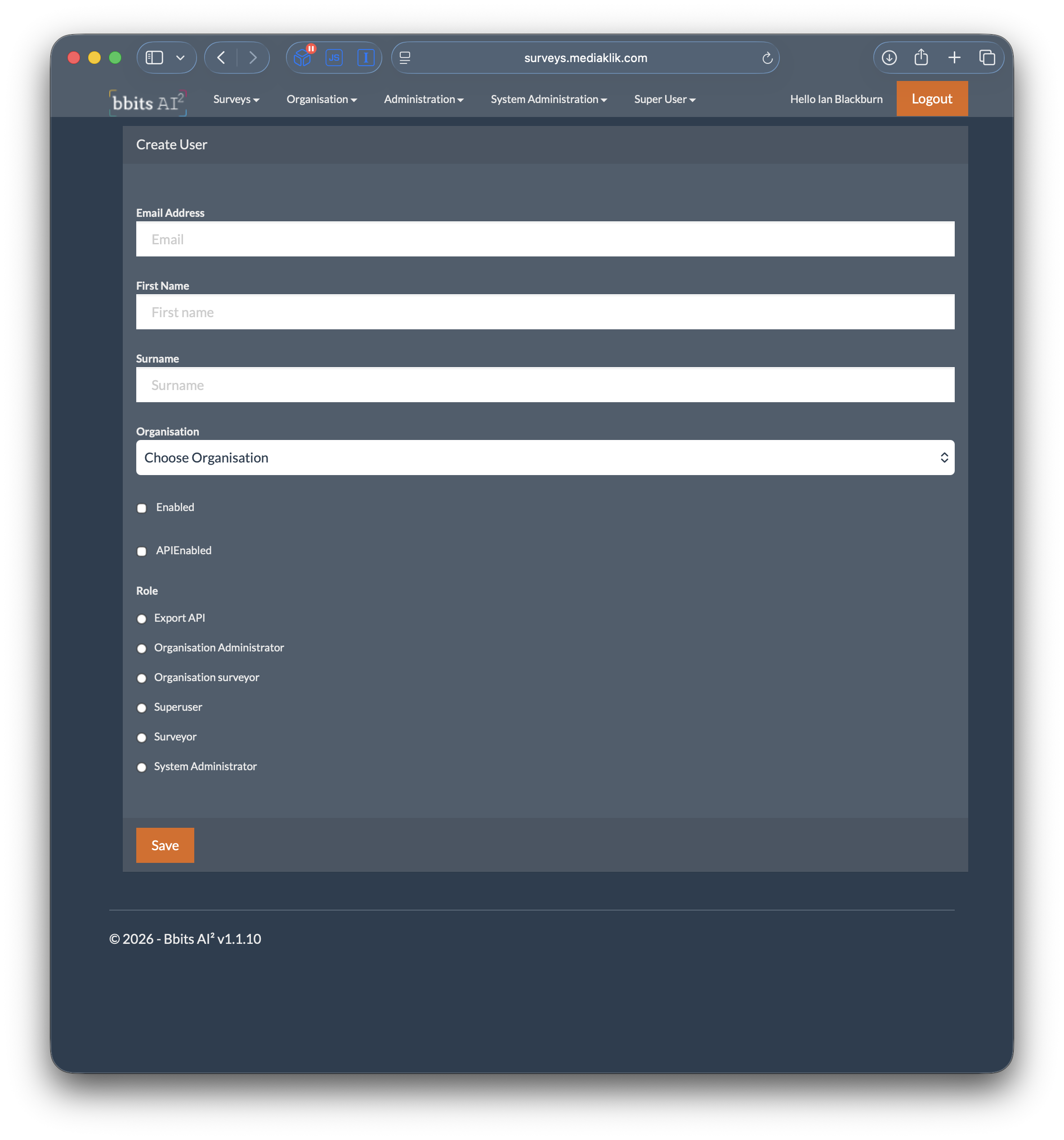
Open Organisation → Users and select Create a new User. Enter the email address, first name and surname, choose the organisation, enable the account and select the appropriate role. Select Save when finished. You can also filter the user list by organisation and edit an existing account.
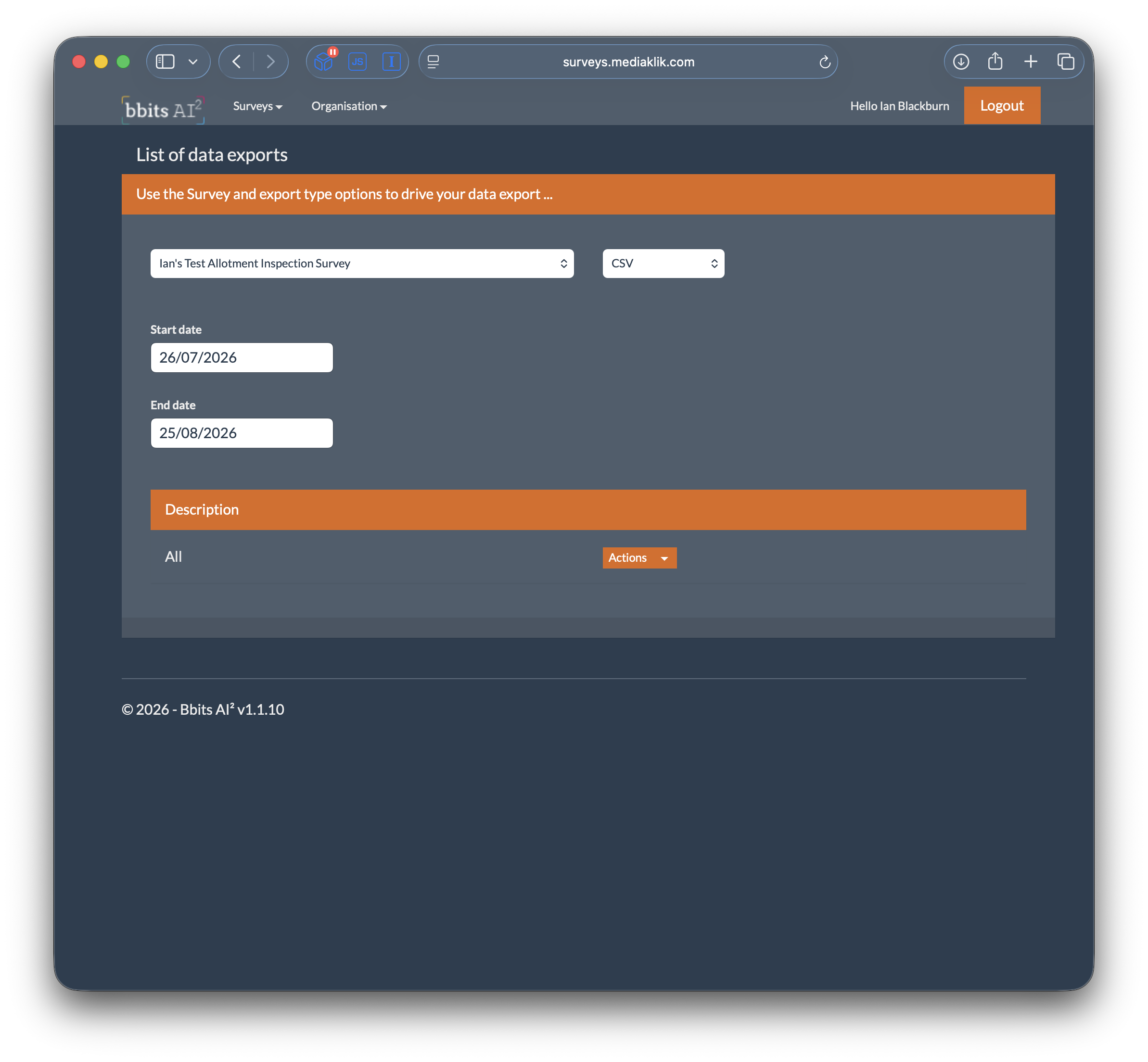
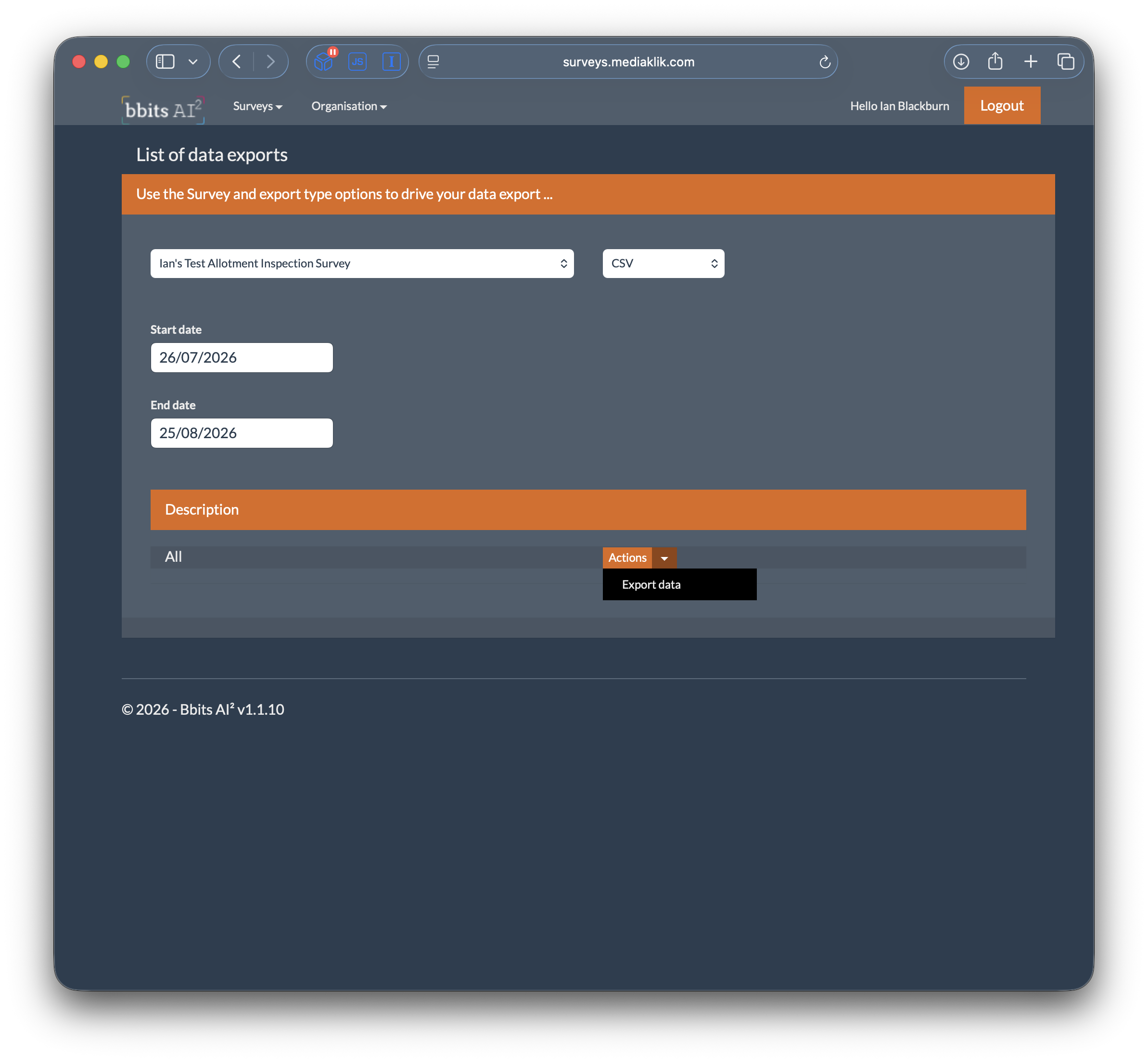
Surveys → Data Export
Download survey data submitted through the app, ready to import into Rialtas Allotment.