01
Install and sign in
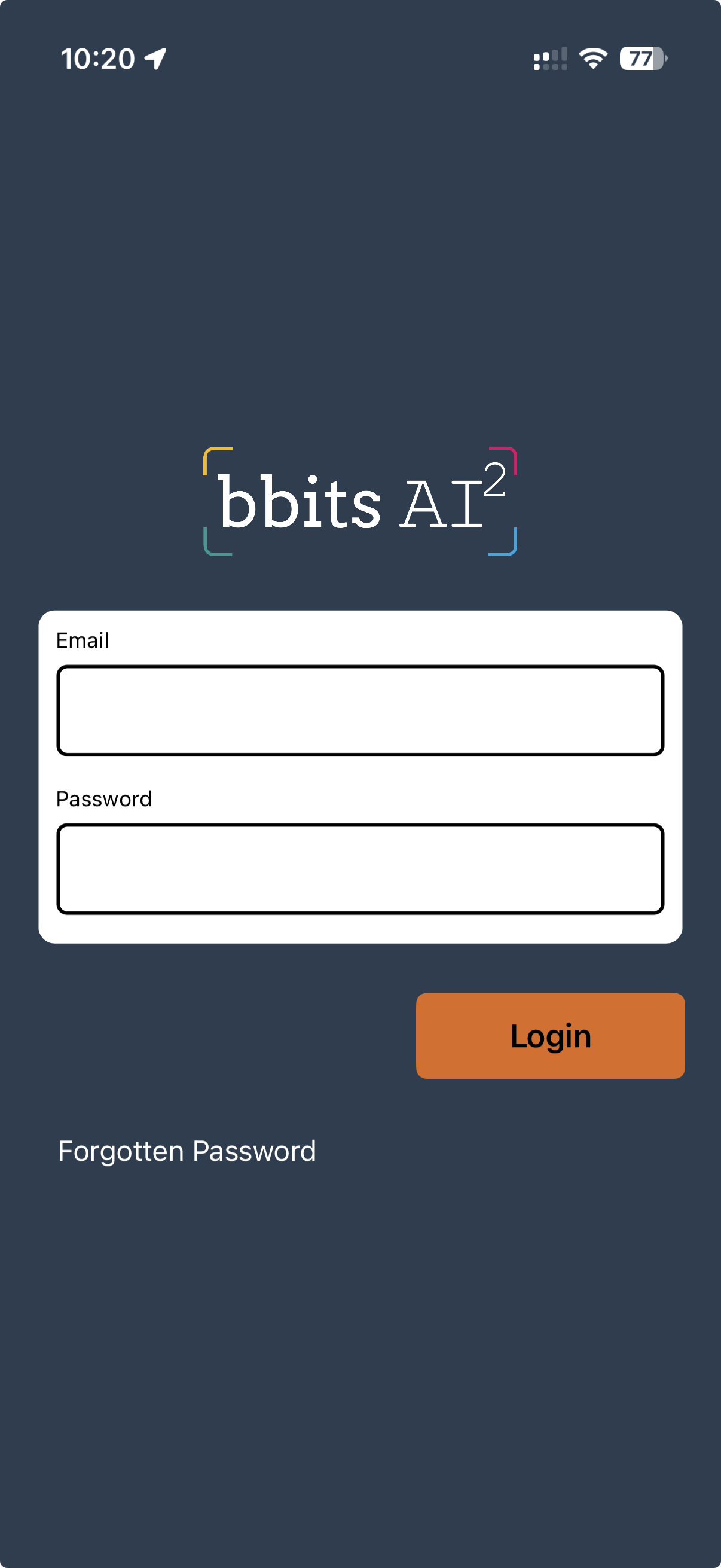
Download bbits AI² from the Apple App Store or Google Play. Open it, allow requested permissions—especially location—and sign in with the email address and password provided to you.
Field user guide
Complete and submit allotment inspections from your phone while working in the field.
Download bbits AI² from the Apple App Store or Google Play. Open it, allow requested permissions—especially location—and sign in with the email address and password provided to you.
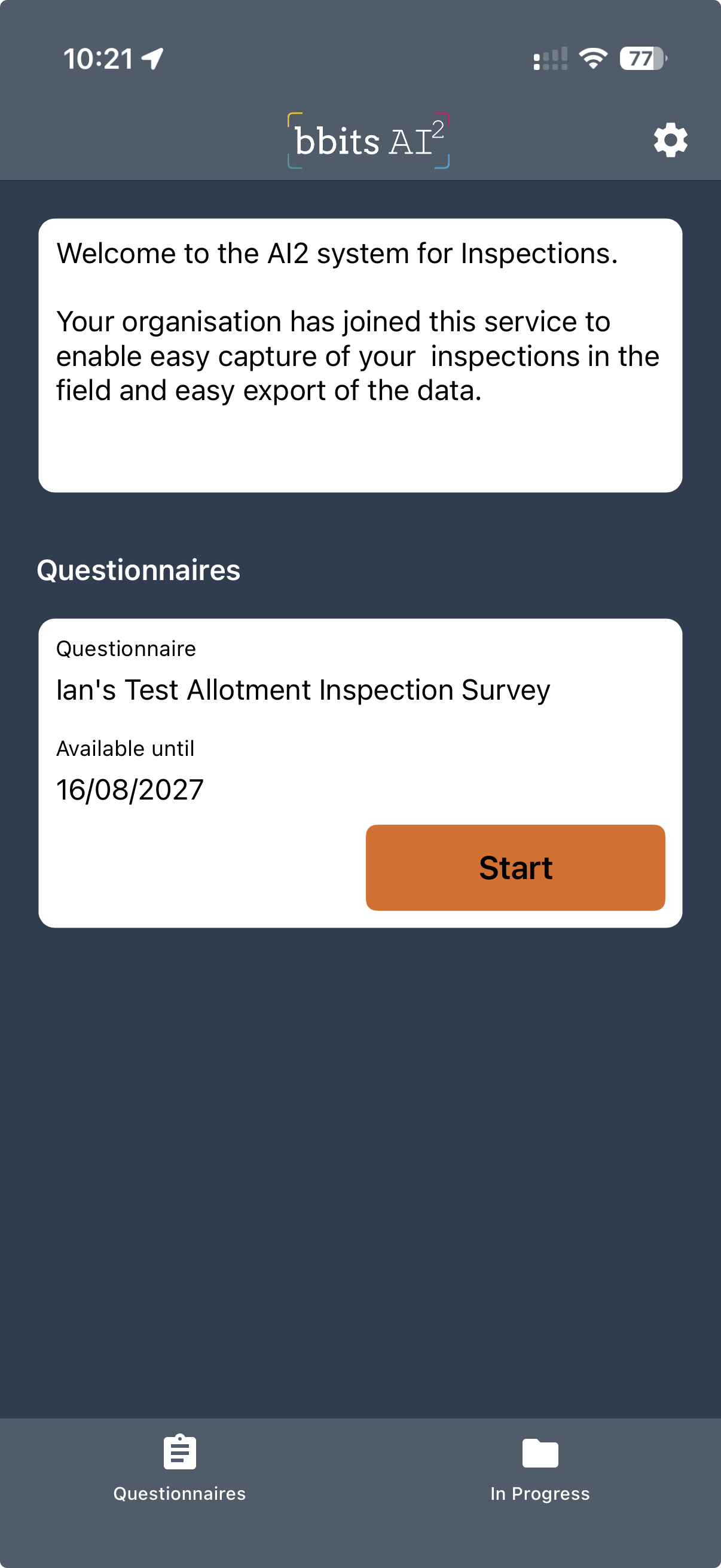
Your welcome message and questionnaires appear after sign-in. Select Download beside Rialtas Allotment Inspection. When it is ready, the button changes to Start.
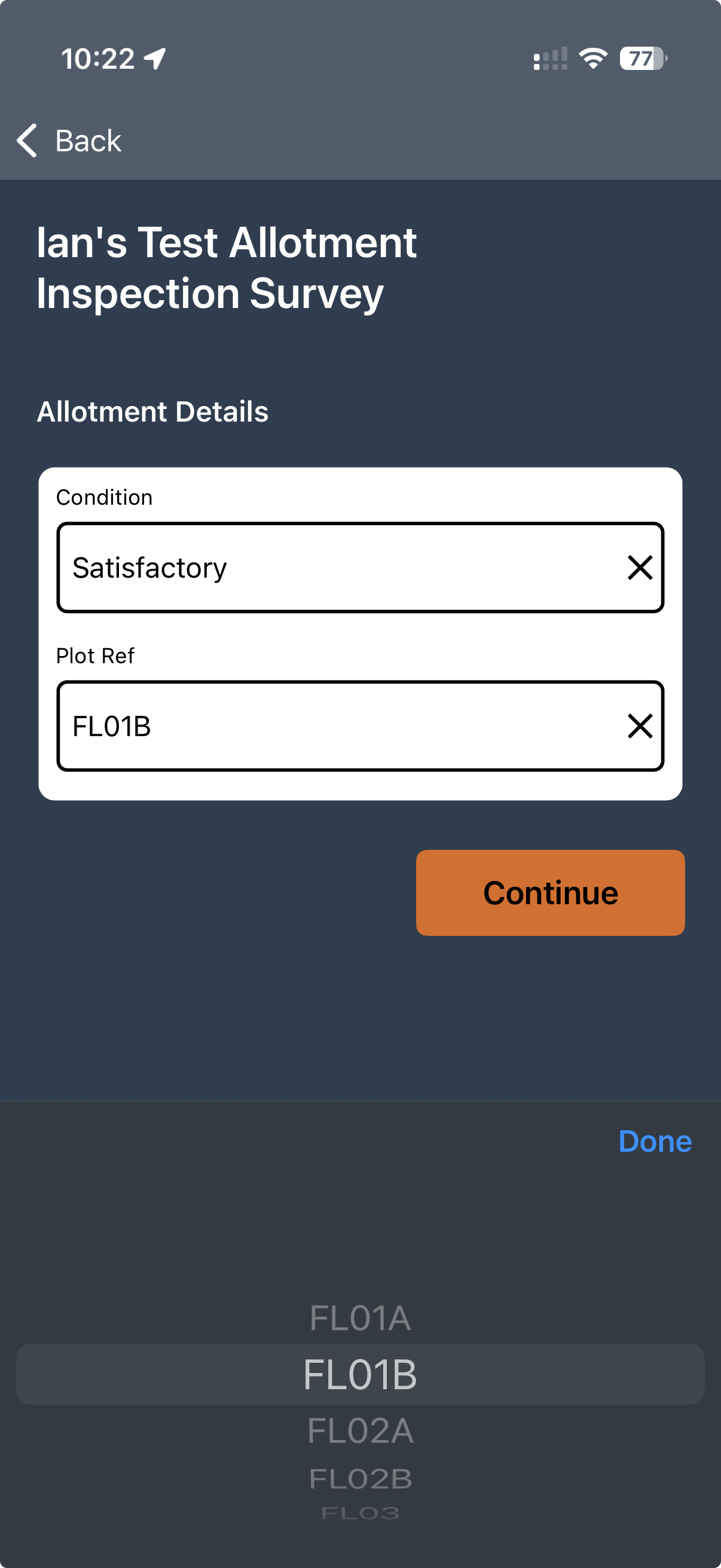
Select Start while you are on site so the app records the correct location. Choose the plot reference and condition, then select Continue.
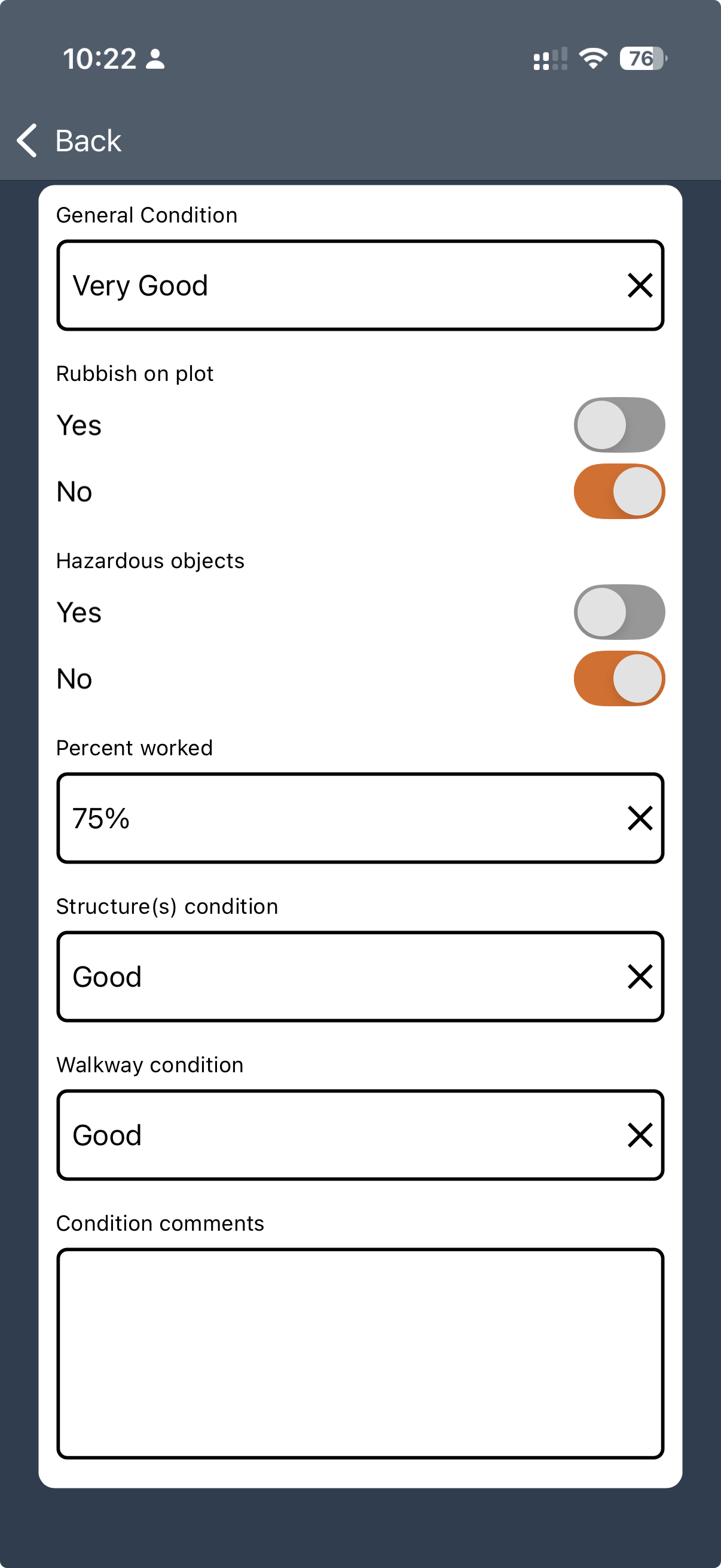
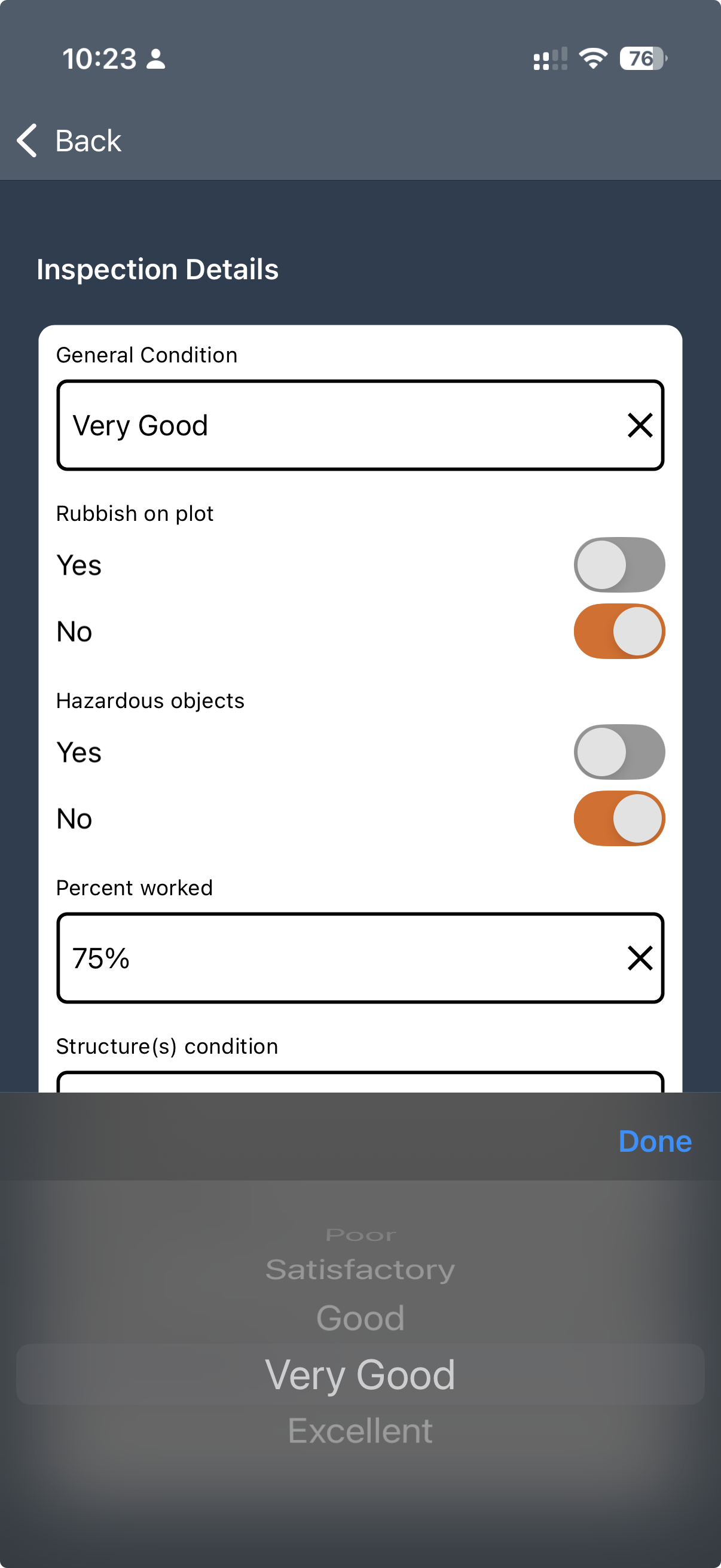
Select Edit beside each section, answer the questions and select Save at the bottom of every screen. Complete Inspection Details and Next Inspection.
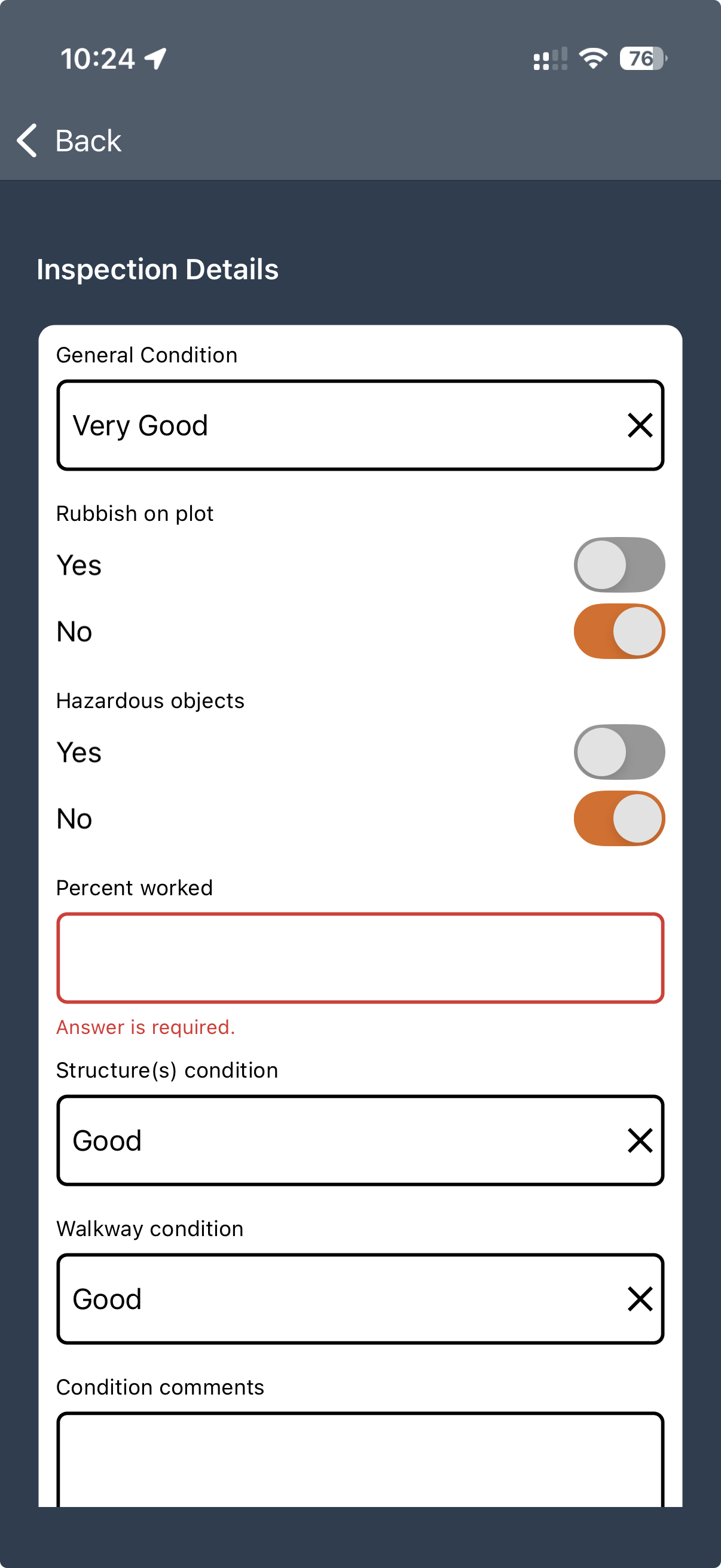
Select Complete. If anything required is missing, it is highlighted in red. Return to that section, provide the answers, Save and select Complete again.
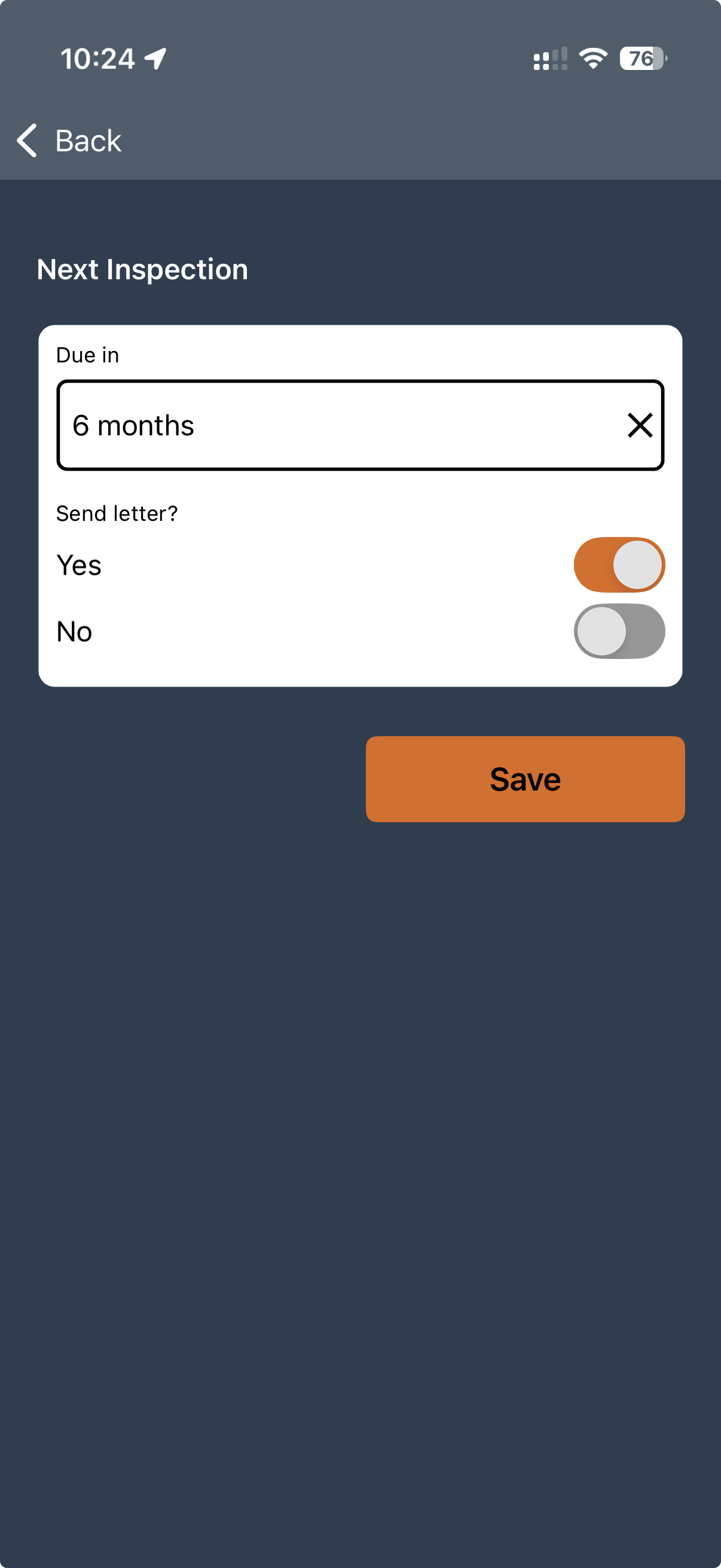
Set the next inspection, then add overall comments or images if useful. Select Send Now to submit immediately, or Send Later to keep it on your device until you have a better connection.
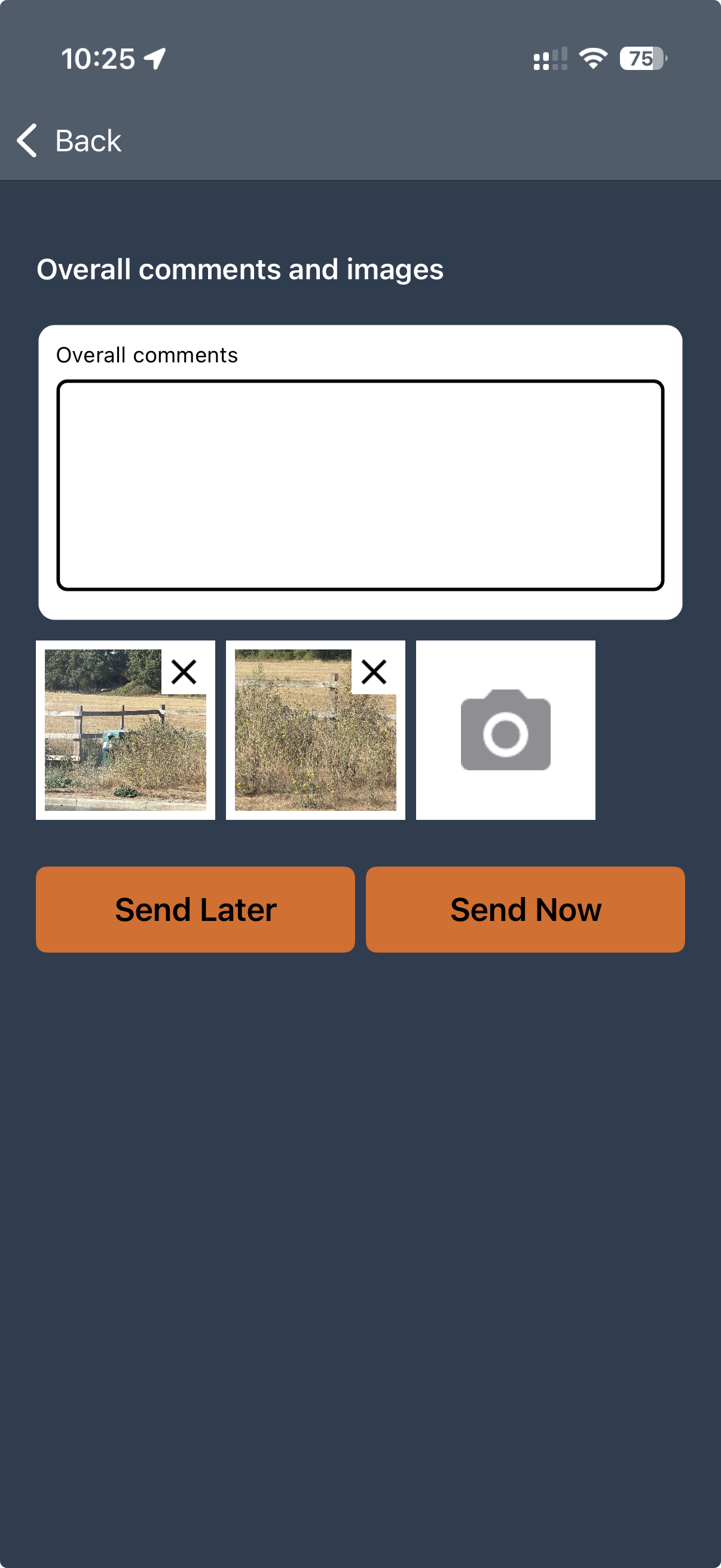
Sends the completed inspection straight to the administration panel.
Saves the inspection so you can submit it later, perhaps over Wi-Fi.
Pause and return at any time
You do not need to complete an inspection in one session. You can leave the survey whenever you need to and your answers will remain saved on this device.
When you are ready to continue, open In Progress from the first screen and select Edit. Complete the remaining sections, then send the inspection when it is ready.